The Problem with Traditional Lookbooks
A traditional lookbook means booking a studio, hiring a model,
coordinating a photographer, and then waiting one to two weeks for edited images.
For a small fashion brand running seasonal campaigns, that timeline
— and that budget — can be a real blocker.
AI lookbook generation offers a different path.
Upload a product photo, set a few options, and get on-model images the same day.
This guide walks through how to do that with LaonGEN,
from signing up to downloading your finished images.
LaonGEN is used by 400+ fashion brands to turn product photos into
on-model images without a photoshoot. The interface supports both
Korean and English — toggle the language in the header.
What Is LaonGEN?
LaonGEN is an AI image generation platform built specifically for fashion e-commerce.
The main feature is Lookbook Generation: upload a garment photo
and get back images of a model wearing it.
The platform also includes:
- Product Shot (NEW) — clean product images with custom backgrounds
- Fabric-to-Garment (NEW) — generate garment designs from fabric swatches
- My Studio — your personal library of all generated images
This guide focuses on Lookbook Generation, the core feature most brands start with.
Step 1: Sign Up
Go to laongen.com and create an account with your email.
New accounts start with free credits — enough to generate your first lookbook
images without entering payment details.
After signing in, you land on the Dashboard, where you can see your
credit balance, active projects, and generation queue.
Step 2: Create a New Lookbook
Click “1-Person Lookbook” from the dashboard or the top navigation.
The creation form opens with a few key fields.
Project name — Give the lookbook a label that makes sense to you.
This shows up in My Studio later.
Model face — Choose a model face from the preset library,
or upload a reference face image. The AI uses this to keep the model’s
appearance consistent across all generated images in the project.
Clothing items — Upload your product photo here.
A single garment against a plain background or mannequin works best
(more on that in the Tips section).
Step 3: Set Background and Options
Once your model and clothing are set, configure the look of the final images.
Background — Upload a background image or choose from presets.
The background can be a studio backdrop, a lifestyle setting, or an outdoor scene.
LaonGEN composites the model and garment into the background you choose.
Options:
- Ratio — 1:1 (square, for Instagram), 3:4 (portrait, for product pages),
4:3 (landscape) - Image count — How many output images to generate per run
- Pose — Basic or Full-body. Full-body shows the complete outfit
from head to toe. - Custom instructions — A free-text field for specific directions
like “hands in pockets” or “looking away from camera”
When everything is set, click Generate.
The system queues your job and typically completes within a few minutes.
Step 4: Review and Download
Generated images appear in My Studio.
From here you can:
- Select individual images to keep or discard
- Download images at full resolution
- Re-generate specific frames if a result doesn’t look right
My Studio stores all your previous projects, so you can come back
to earlier generations at any time.
Real Results — Clothing Lookbook
Here is an example using a botanical jacquard dress shot on a mannequin.
Input:
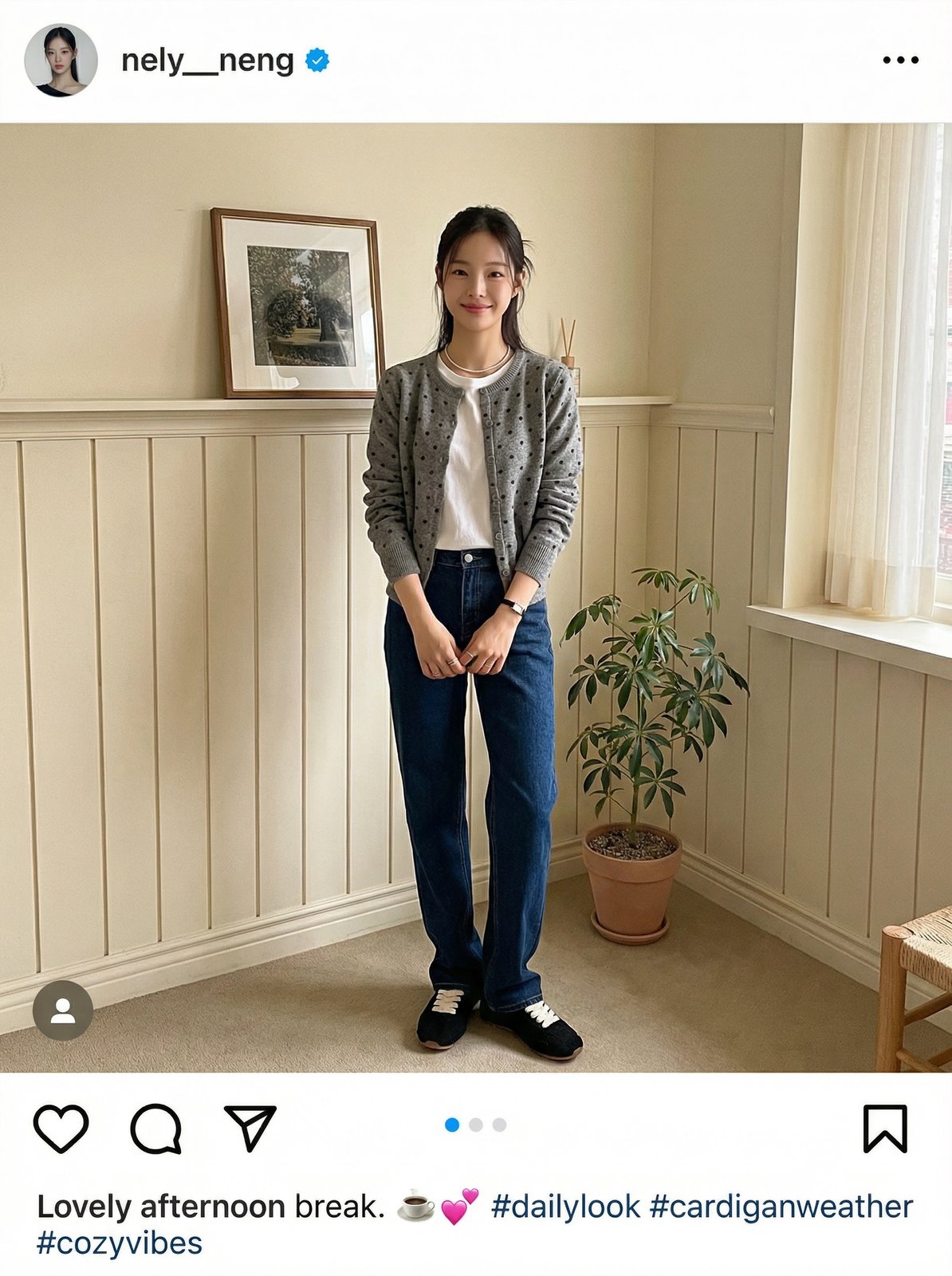
Output — 6 generated lookbook images:
The AI reconstructs how the fabric drapes on a human body, retains the
print detail, and places the model in the selected background.
Different backgrounds and poses produce noticeably different looks
from the same input photo.
Real Results — Accessory Lookbook
LaonGEN also handles accessories and bags. The example below uses
a beige tote bag paired with two different background references.
Input:
Background references:
Output — 3 generated results:
Background choice has a strong effect on the overall mood.
A neutral studio background reads more commercial;
a lifestyle or outdoor background reads more editorial.
Using two different backgrounds in one session is a straightforward way
to test which direction fits your brand.
Tips for Better Results
Use a clean input photo.
A garment on a plain white or light-gray background — or on a mannequin —
gives the AI a clear read of the garment shape and details.
Avoid busy backgrounds or heavily styled flat-lay shots as inputs.
Match the background to your intended use.
Square ratio + neutral background works well for product listing pages.
Portrait ratio + lifestyle background works well for social or campaign content.
Use custom instructions for specific poses.
If you need the model to stand a particular way or interact with the garment,
write it in the custom instructions field.
Short, direct instructions work better
than long descriptions: “arms crossed” or “side profile” rather than
a full paragraph.
Re-generate if the first result misses the mark.
Each generation is independent, so running the same settings again
produces different results. If one element is consistently off — like the
garment fit or the background integration — adjust the input or settings
before re-running.
Pricing
LaonGEN uses a credit system. One lookbook image costs 10 credits.
| Package | Credits | Price (KRW) | Price (USD approx.) |
|---|---|---|---|
| Starter | 100 | ₩10,000 | ~$7 |
| Standard | 500 + 10 bonus | ₩50,000 | ~$35 |
| Pro | 3,000 + 150 bonus | ₩300,000 | ~$210 |
New accounts receive free credits on signup — use them to test the workflow
with your own garments before purchasing.
Enterprise Service
For brands with higher volume needs, custom model requirements, or integration
into an existing production workflow, LaonGEN offers enterprise consultation.
Reach out directly through the site for a free consultation.
Start with Your Own Product
The fastest way to see if LaonGEN fits your workflow is to run one generation
with an actual product from your line.
Upload a garment photo, pick a background,
and check the output before making any decisions about credits or scale.