
One garment photo becomes an on-model shot
Upload one photo of a garment laid flat or on a hanger, choose a model, and you get an on-model shot of that garment. Pick from the recommended models, or create your own in any age range, from baby to 50s and up. Womenswear, menswear and kidswear all work the same way.
-
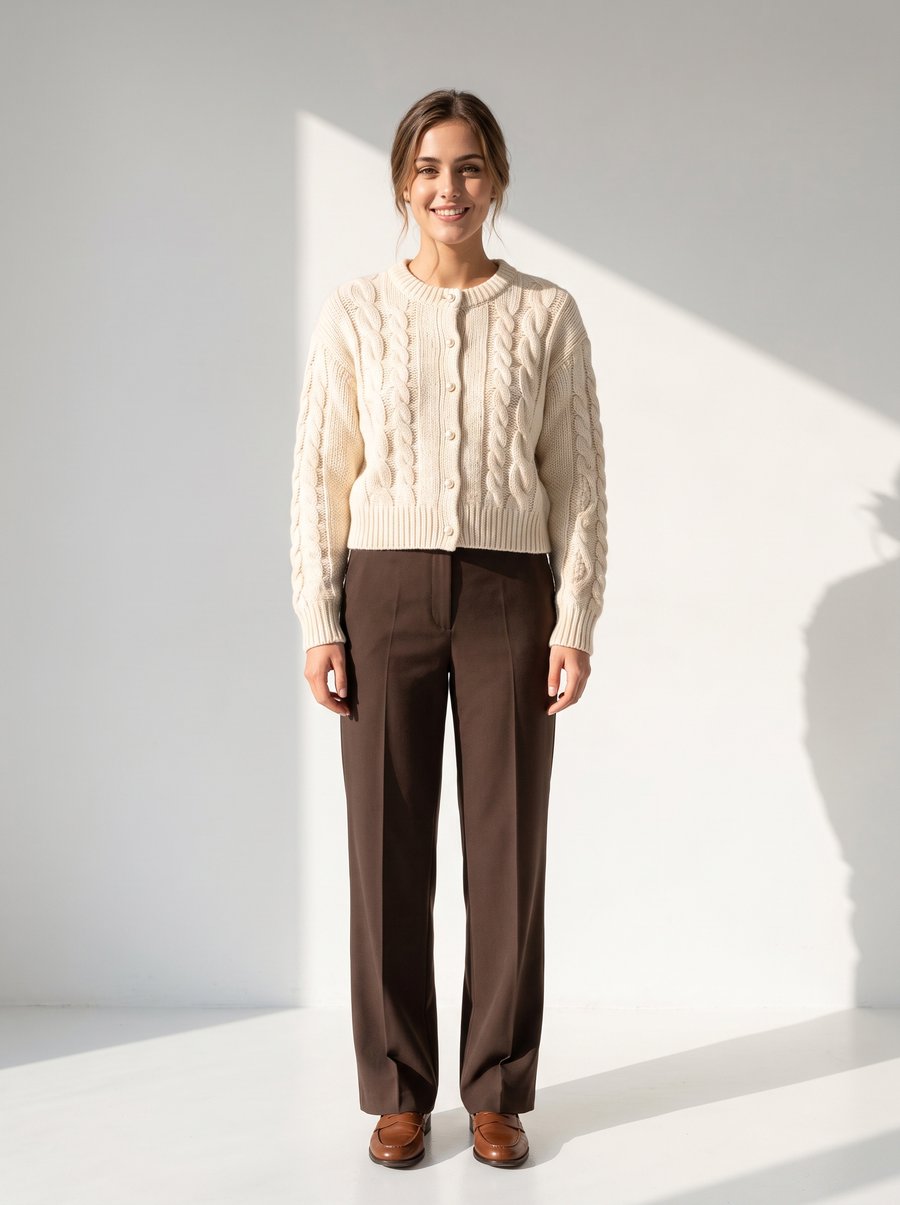
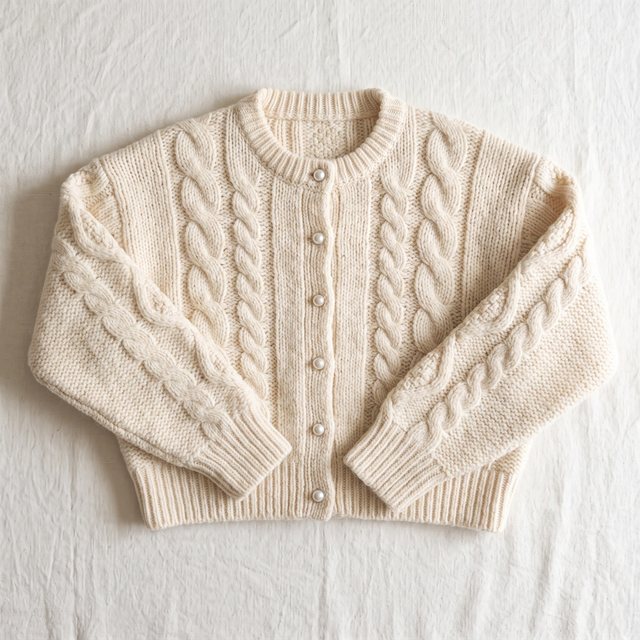
Knit cardiganModel in her 20s -
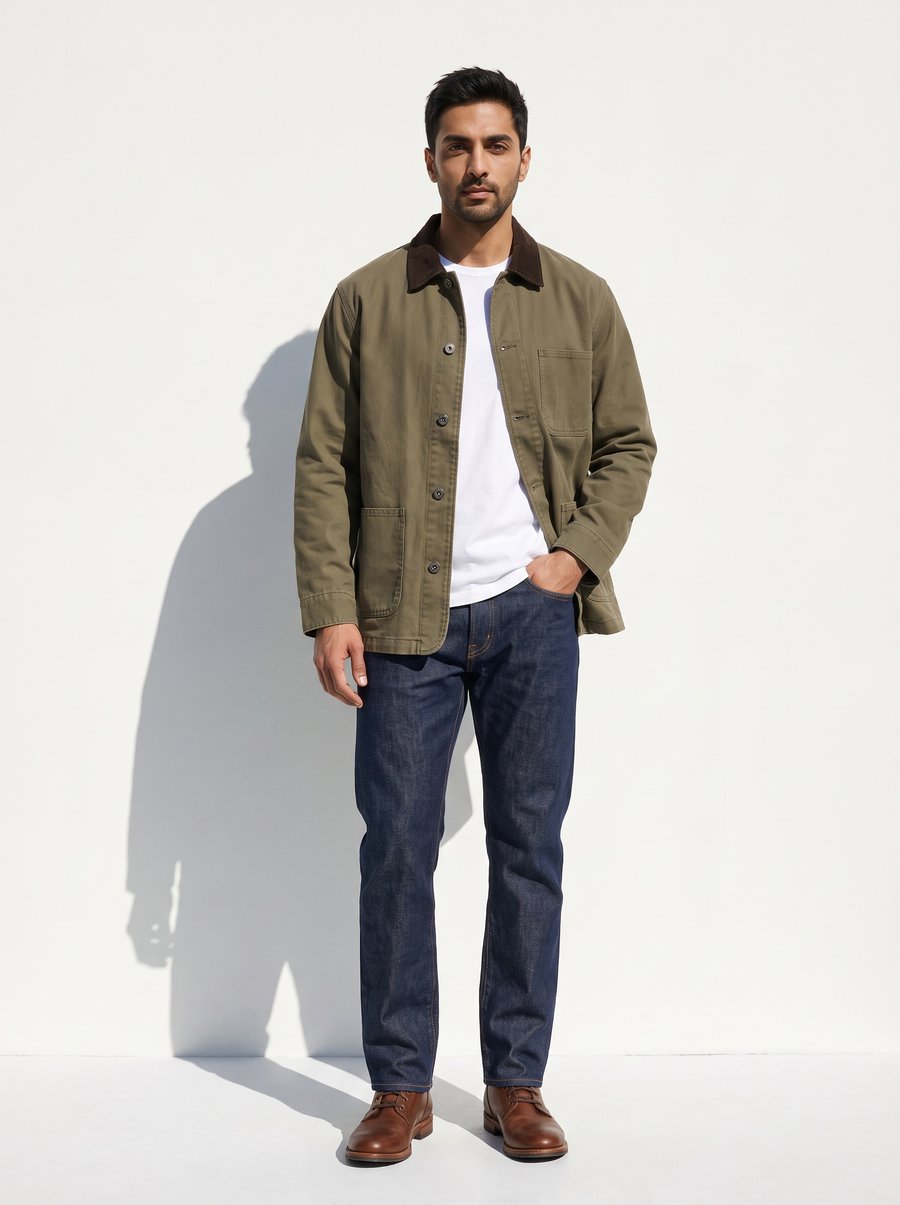
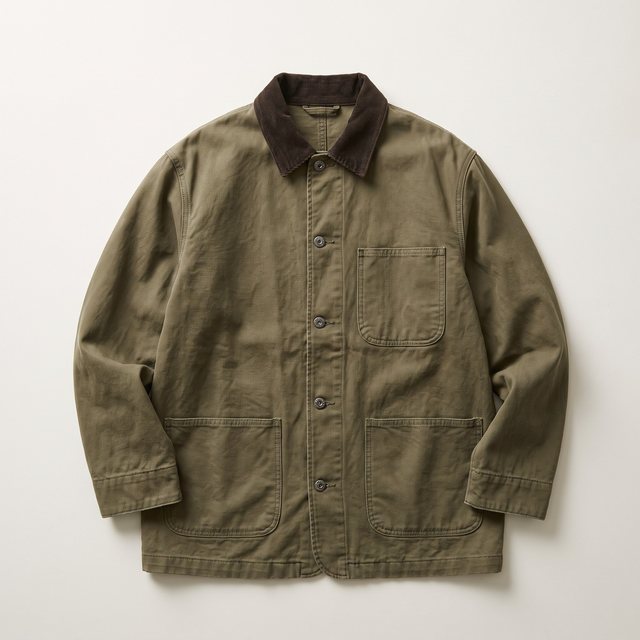
Work jacketModel in his 30s -
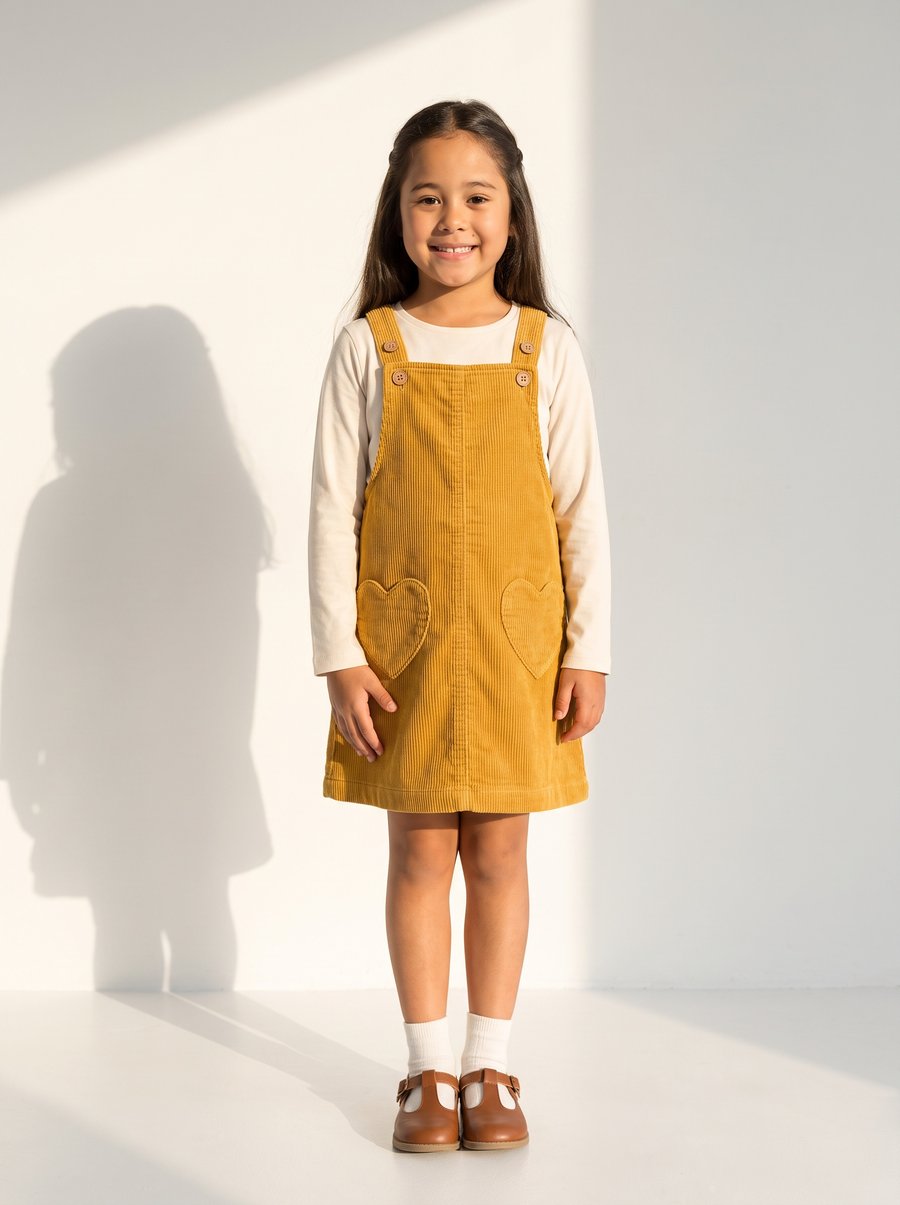
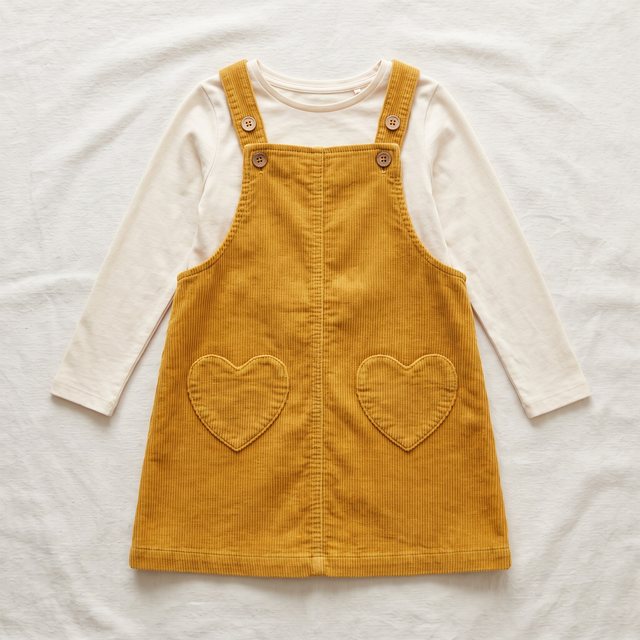
Corduroy dressModel aged 7–9 -
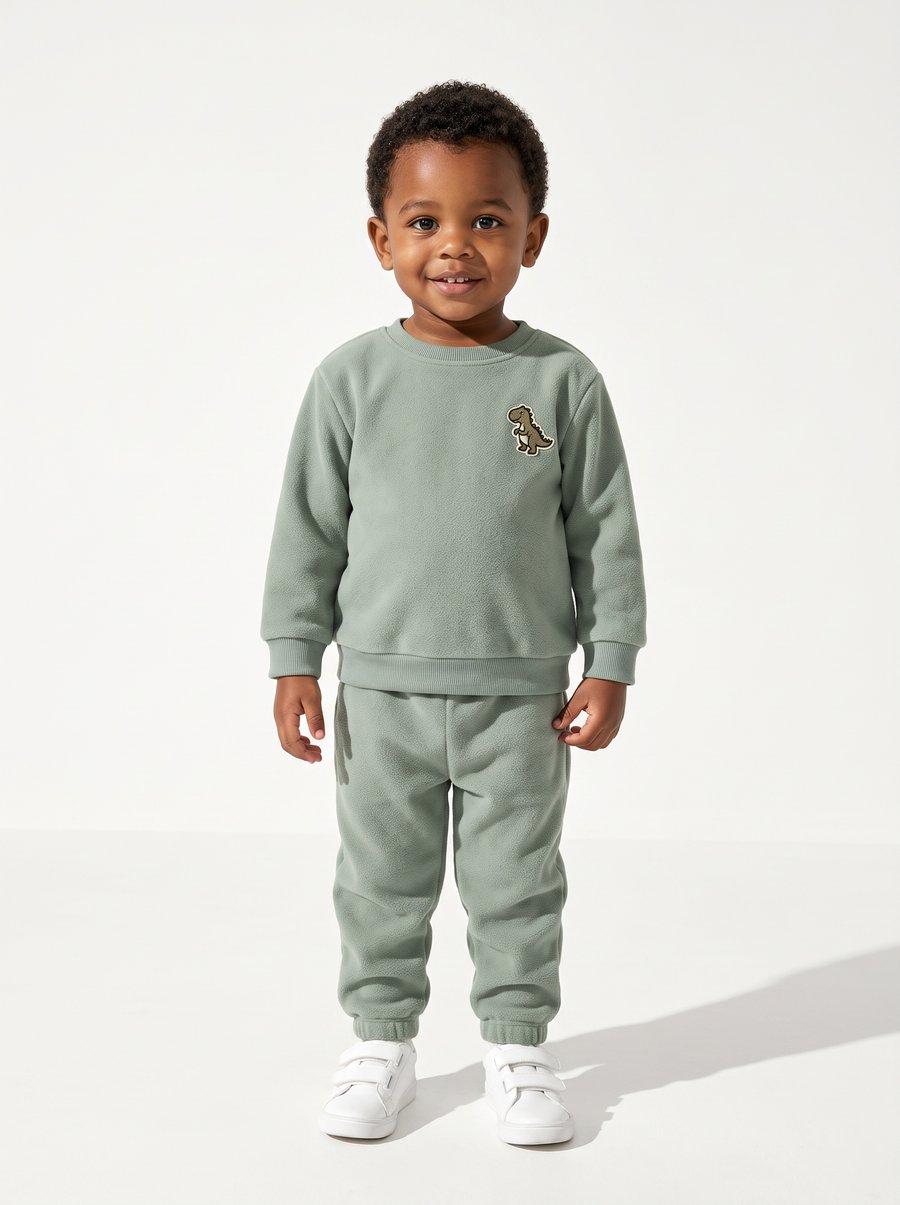
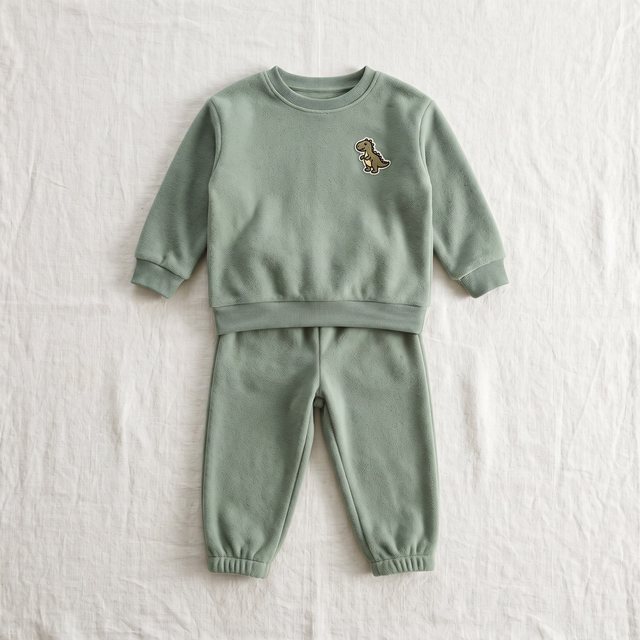
Sweatshirt setModel aged 2–3
The small photo at the top left is the product photo we uploaded, and the large one is the on-model shot made from it with LaonGEN Lookbook. The product photos are samples made for this example.
-
Lookbook
Choose a model and a background for one garment photo to make on-model shots. Lookbook also includes Horizon Lookbook, which gives you front, side and back views in one run, and Reference Lookbook, which recreates the pose, composition and tone of a photo you pick, with your model and your garment.
-
Product Cut
From the same photo, make ghost mannequin shots, cutouts on white, and styled hanger and flat-lay shots. It works for clothing, bags and shoes.
Start with the approach that fits your products
Each kind of product has its own thing to get right. Bags and shoes have to show their size, team uniforms need the same face across many pieces, and kidswear needs a model of the right age. We wrote up the steps and example shots for each kind of product separately.
-
Bag & shoe on-model shots
Upload one cutout and add one line about where it sits, such as "bottom of the bag just above the elbow," and you get on-model and on-foot shots that show the size.
-
Team uniform mockups
Create a model once, then swap only the garment and color to make on-model uniform mockups for your proposals to schools and teams.
-
Kidswear on-model shots
Choose an age range to create an AI child model, then change only the clothes for each season's products.
Shots made with other garments are collected in LaonGEN Examples, where each one shows the prompt used to make it.
Image Edit: fix only the part that bothers you
Pick a finished shot, describe the change in one line, and only that area changes; the rest stays the same. You can mark the area with a rectangle or a lasso and upload a reference photo of what should go there. In the shot below, the only change was closing the zipper on an open puffer jacket.
Expand Image: many scenes from one shot
Choose one of your own shots, and you get new shots of the same model in the same outfit, with a different composition or in a different place. You pick from 4 levels, from changing only the angle in the same spot to keeping just the mood and moving to another location. Each run makes 1 to 4 images.
Brand models and backgrounds: the same face all season
In My Assets › Model › Create your own, choose a gender and an age band, and add ethnicity, a mood prompt or reference photos for the face and hair if you need them. Save a face you like to My Assets and your next products use the same face. Models saved in a business workspace are available to your colleagues as well.
Backgrounds work the same way: make one once and keep using it. In My Assets › Background › Create your own, make a background from a one-line prompt or a reference photo, then drop the saved background straight into your next lookbook. Each lookbook you make adds the model, outfit and background you used to My Assets automatically.
Video: lookbook shots that move
-
Create Video
Make a 3- to 15-second video from one start frame (one of your shots or a photo you upload) and a prompt. Add an end frame as well, and the video connects the two. Videos are made in 1080p, and you can add background music and a voice.
-
Motion Graphics
Add several product and model photos and your brand name, and you get a vertical video for Reels and Shorts. You can pick a template, follow the rhythm of a reference video, or build it from scratch.
Other features
- Fabric Cut — Choose a fabric photo and a design to see a garment made from that fabric. Use it to check the finished look before you make a sample. 10 credits per image, Free and up.
- Canvas — Assemble your shots into product-page images, social images and banners. Starter and up.
- Adjust — Change the brightness and color of a shot and save it as a new image. It uses no credits. Starter and up, on desktop.
When you sign up, you can make 5 on-model shots for free. See the Pricing page for what your volume will cost.
Frequently asked questions
What can I use with a free account?
You get 50 credits when you sign up, and the Free plan includes Standard Lookbook (Solo), Product Cut, Fabric Cut and My Assets (including model creation). Image Edit, Reference Lookbook, Horizon Lookbook and Create Video can each be tried up to twice on the Free plan.
How is Image Edit different from Expand Image?
Image Edit changes part of one finished shot: you describe what to change in one line, and only that area changes. Expand Image takes one of your own shots and makes new shots of the same model in the same outfit, with a different composition or in a different place.
Can I use the images in my store and in ads?
Yes. Under the Terms of Service, the copyright in images you create with LaonGEN belongs to you, so you can use them to sell and market your products on product pages, social media and ads. You're responsible for having the rights to the photos you upload.
How are the product photos I upload stored?
Uploaded photos and generated images are visible only in your account, and you can delete them yourself at any time from the Results screen.