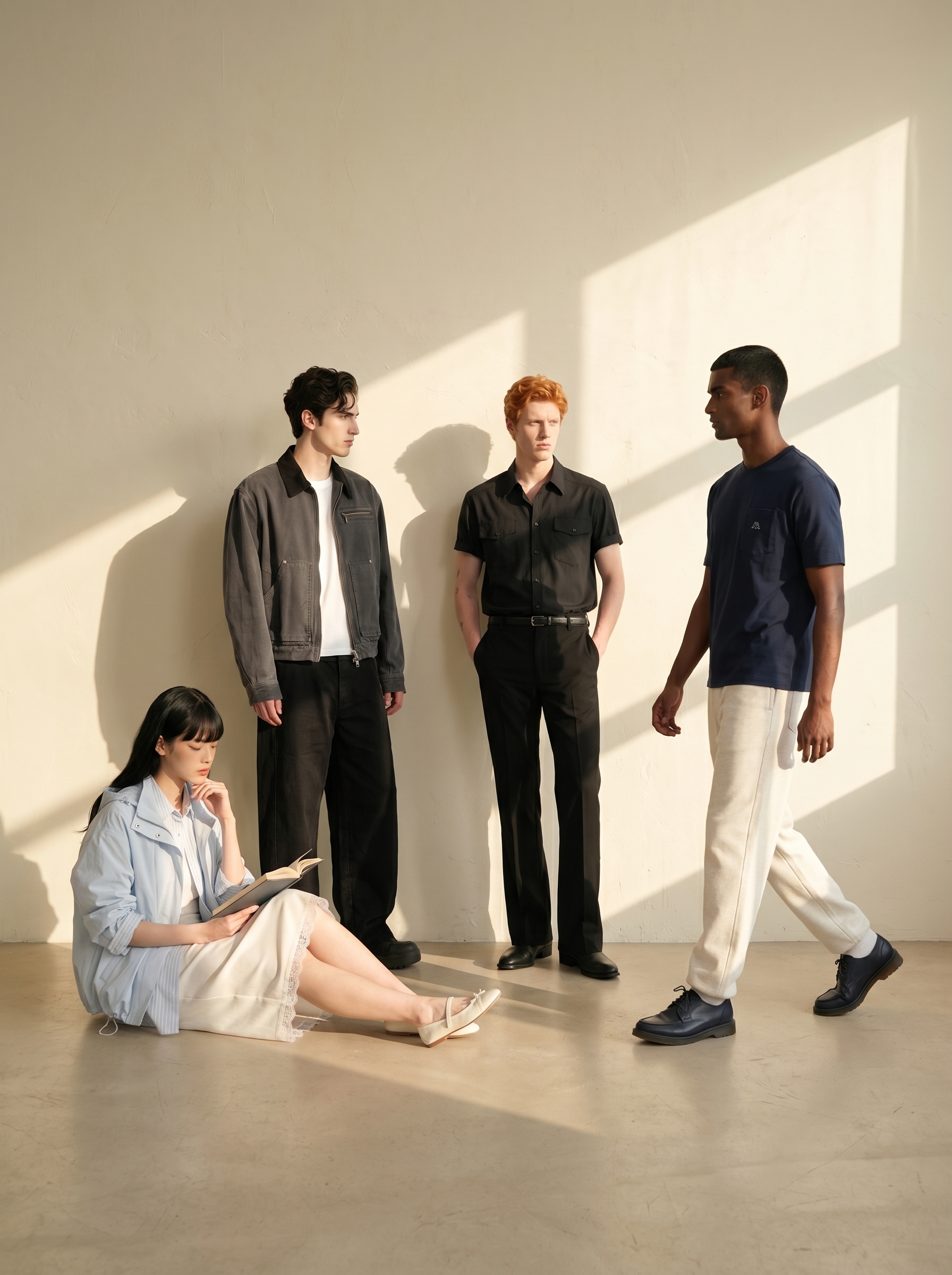
A group lookbook places multiple finished looks into one coordinated frame. It is useful for couple styling, uniforms, collections, and campaigns that need the subjects to share one visual world.
Group Lookbook generates a multi-model lookbook from finished lookbook images. Upload images of each model wearing their outfit, and you get two or more people in one cohesive scene.
Perfect for couple looks, similar looks, team styling, and brand campaigns — any time you want multiple outfits in a single shot.
Who’s this for? 👀
- Anyone who wants couple or similar looks in one frame
- Brands that need team styling or campaign imagery
- Users who’ve made solo lookbooks and want to scale up to multiple people
What you’ll need 🧰
Before generating, get these images ready.
| Item | Required | Description |
|---|---|---|
| Lookbook images | Required | Finished lookbook images for the group shot. You need at least two. |
| Background image | Optional | A reference for location, mood, and pose direction. Skip this and use LaonGEN’s recommended backgrounds. |
What’s a “lookbook image”? 🤔
In Group Lookbook, a lookbook image is a finished image of a model wearing an outfit. You can use a solo lookbook you made in LaonGEN, or prepare your own model shots in any outfit you want.
These all work as lookbook images:
- Solo lookbook results generated in LaonGEN
- Model images wearing the outfit you want
- Brand-owned lookbook images
- Photos of models actually wearing your product
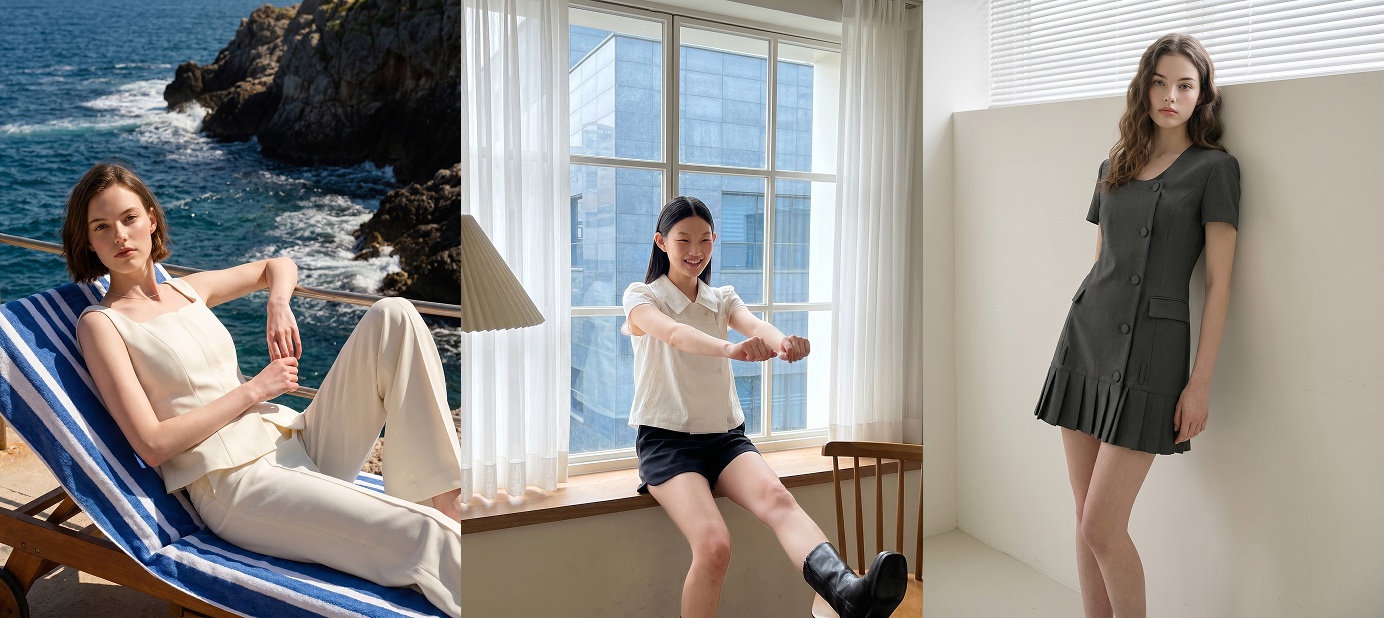
✋ Just one thing! You need at least two lookbook images for a group lookbook. Building up a stock of solo lookbooks first makes it easier.
For example, gather a few solo lookbooks you made separately and they come together into one group scene like this.
Group Lookbook, step by step
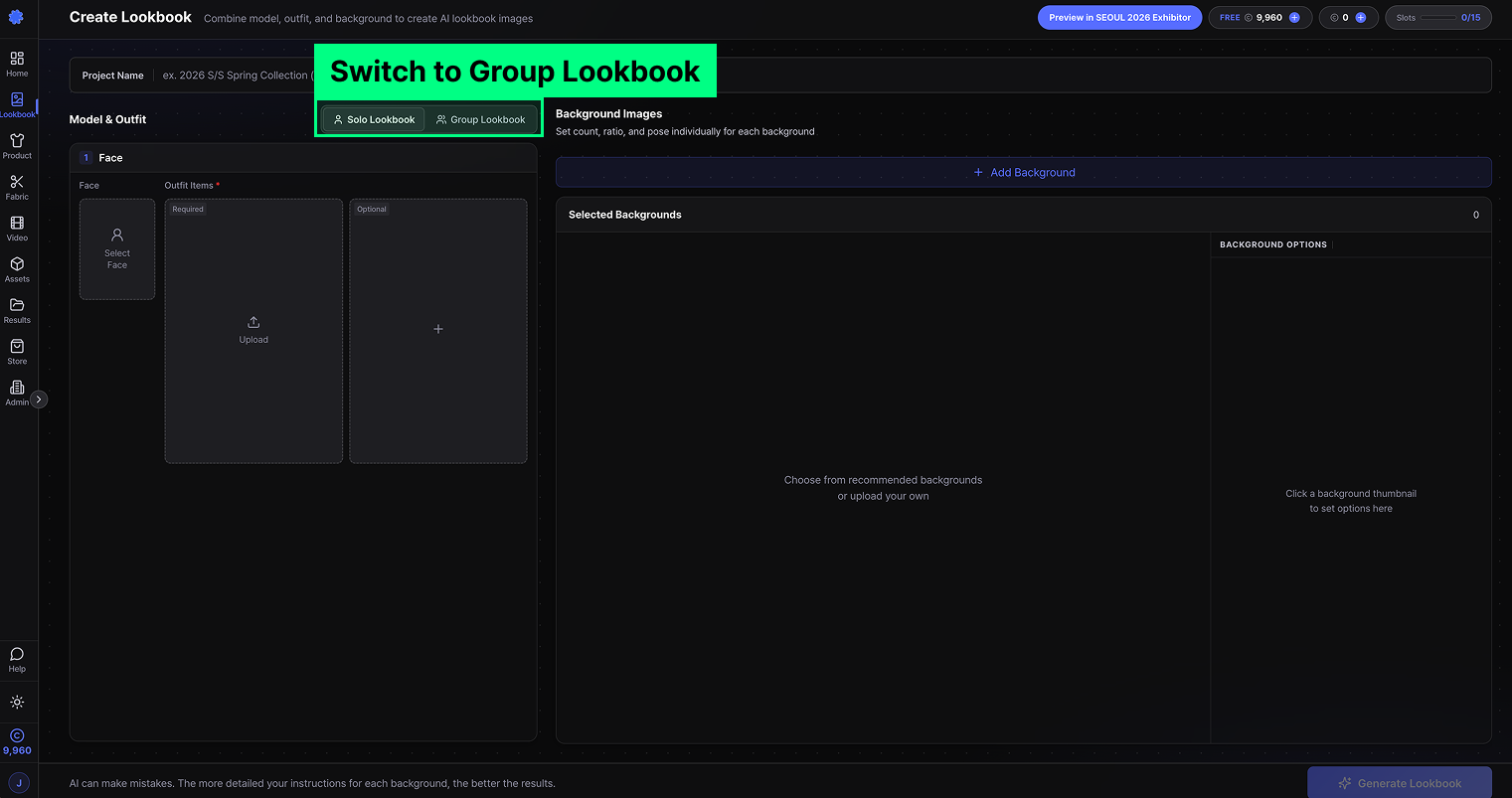
STEP 1. Go to Create Lookbook → Group Lookbook 📍
From the top menu, open Create Lookbook, then pick the Group Lookbook option.
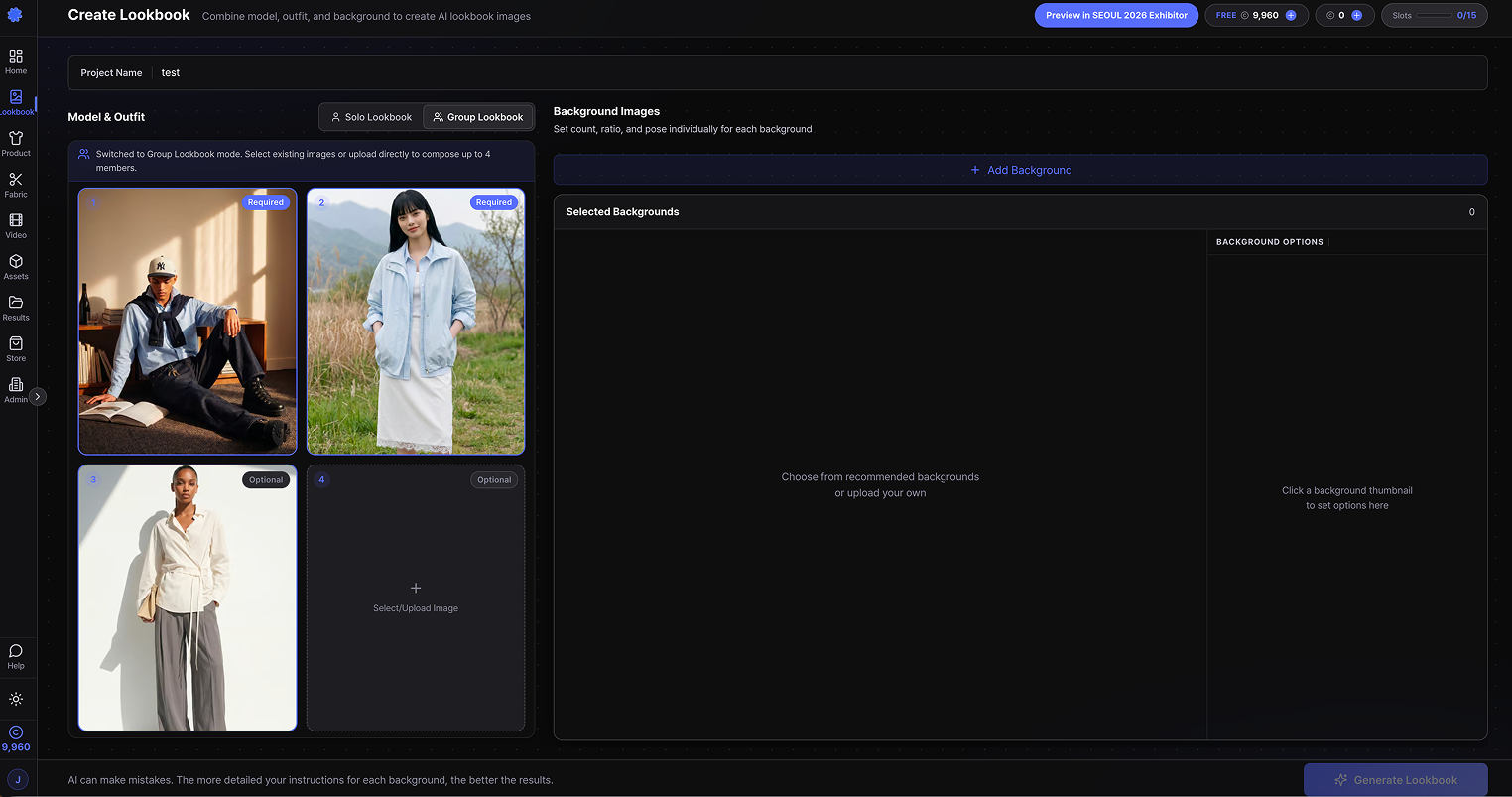
STEP 2. Upload lookbook images (2 or more) 🖼️
Upload the lookbook images for your group shot. You need at least two, and each acts as a reference for the models and outfits in the final image. After uploading, double-check that everything came through correctly.
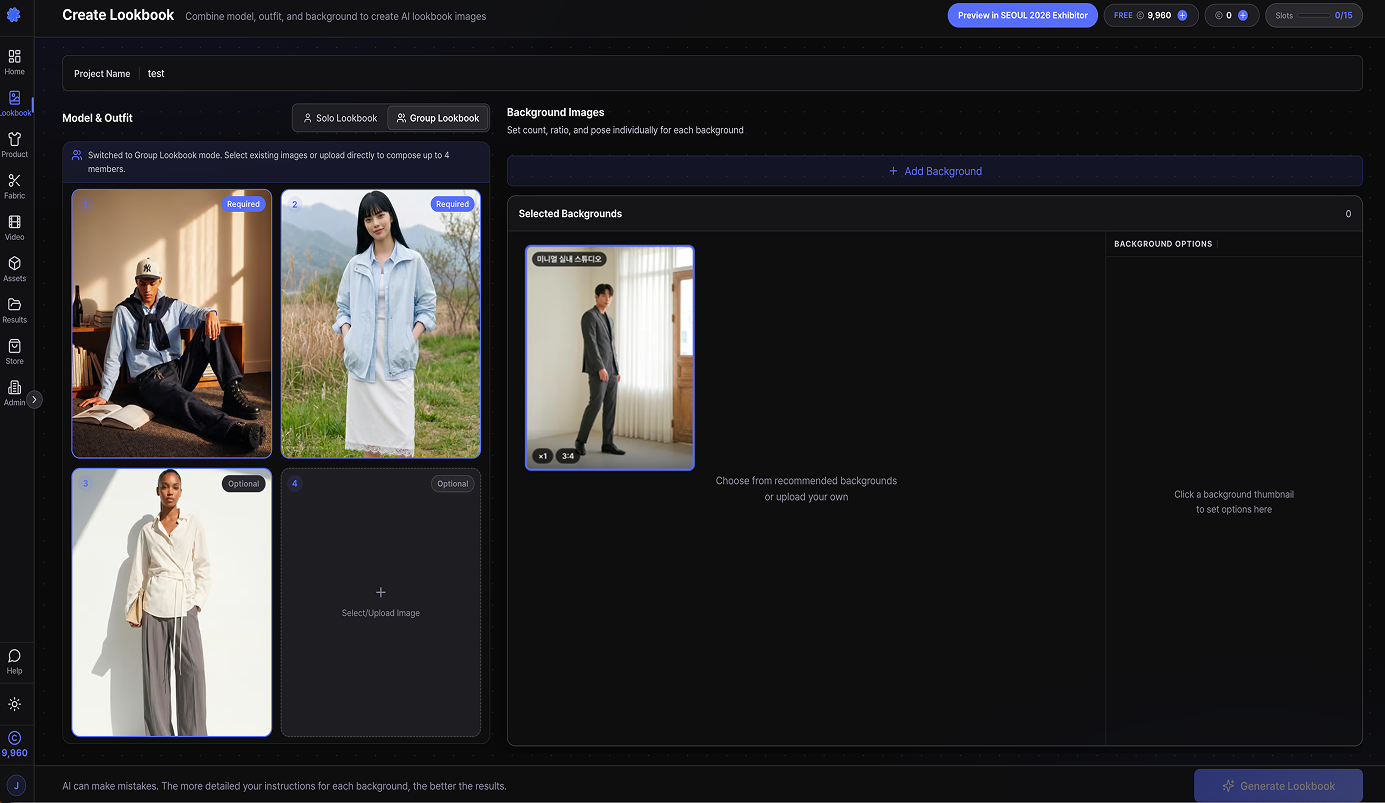
STEP 3. Set the Background 🏙️
Next, set the background. Upload your own or pick from recommended backgrounds. The background drives the location, mood, and pose direction of the generated group lookbook.
💡 TIP! Since multiple people will appear, a spacious background that lets figures sit naturally tends to produce better results.
STEP 4. Click Generate 👇
Once your lookbook images and background are set, hit Generate. The system creates a group lookbook based on the uploaded images and background info.
Pre-generation checklist ✅
Group Lookbook combines multiple lookbook images into one scene. Run through this list before you start.
- Did you upload at least two lookbook images?
- Is the outfit clearly visible in each image?
- Are the outfit and model mood clearly defined?
- Is the background a good fit for multiple people?
- Watch out for busy backgrounds or images with multiple people mixed in — they can affect the result.
Related guides 📚
Two lookbook shots are all you need for a multi-model scene. Ready to try Group Lookbook? 👇