A product page, marketplace thumbnail, and campaign ad need different types of product images. This guide explains how to create and review flat-lay, ghost, detail, hanger, and styled shots from one product input.
Product Shot Generation takes one product image and creates a variety of product shot styles using AI. Choose from flatlay, ghost, detail, hanger, and styled-object shots for product pages, social, ads, and more.
Who’s this for? 👀
- Anyone prepping a variety of shots before a new product launch
- Teams needing product images for detail pages, social, and ad creative all at once
- Users wanting to try varied styling without the shoot budget
Get this image ready 🧰
Before generating, prepare the product image you want to use. The following images are acceptable.
- Product laid on a flat surface
- Product on a mannequin
- Product on a model
- 3D-rendered product image
The best results come from images where the product is clearly separated from the background and the full product shape is visible.
Recommended images ✅
These types of images yield the most reliable results.
- Product and background are clearly separated
- The product isn’t cropped or cut off
- Single-product images (e.g., top only / bottom only)
Things to note ⚠️
If you use a mannequin or model-worn image, body parts may appear in the result, or the product may stay worn in the generated shot.
For results that show the product in isolation, use an image like a flatlay where the product appears on its own.
Product Shots, step by step
STEP 1. Upload your image 📤
Upload the product image you want to use. Add it directly to the upload area or drag and drop.
After uploading, double-check the product is clearly visible and the image came through correctly.
STEP 2. Pick generation options 🎨
After uploading, choose what kind of product shot to make. LaonGEN offers the following types.
| Type | Description |
|---|---|
| Flatlay | Product alone on a flat surface |
| Ghost | Product floating in air or revealing its inner structure |
| Detail | Zoomed-in product detail for clearer information |
| Hanger | Product hanging from somewhere |
| Styled object | Product placed within a space or object context |
Detail settings 🎚️
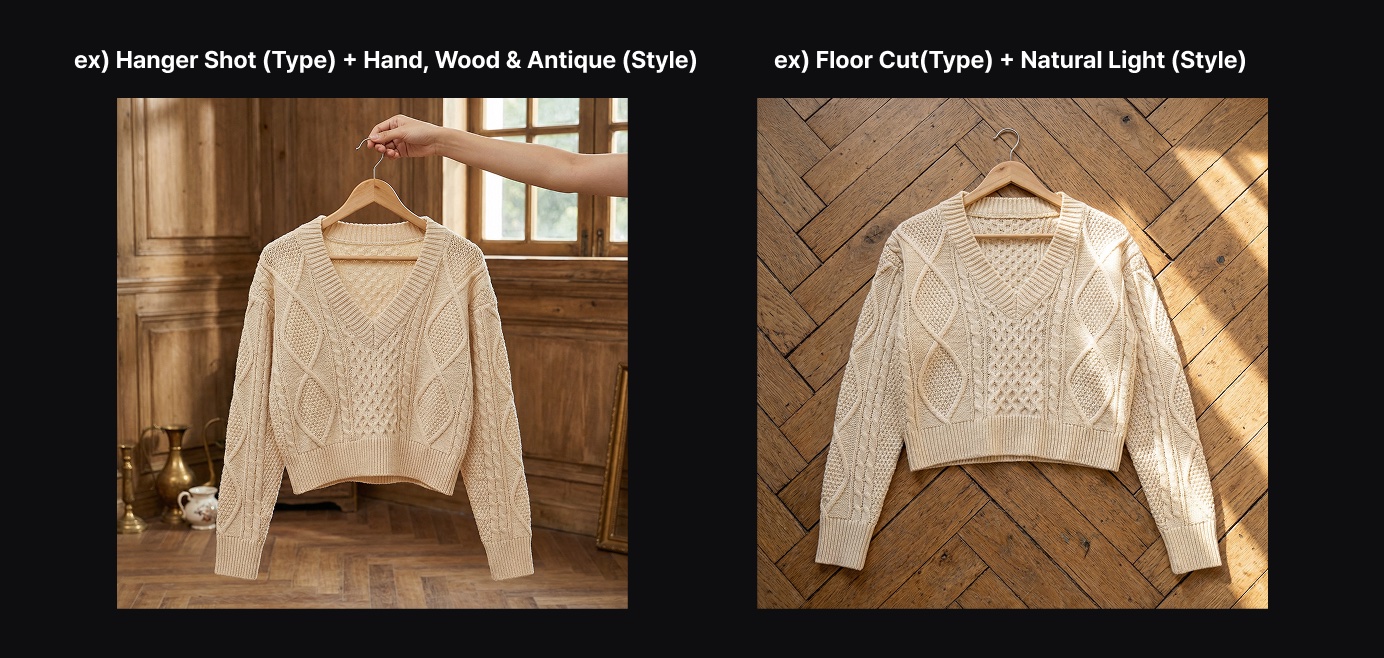
Each type has its own detail settings. Combine type + detail settings to shape the mood you want.
- Hanger + forest, wood & antique
- Flatlay + natural light
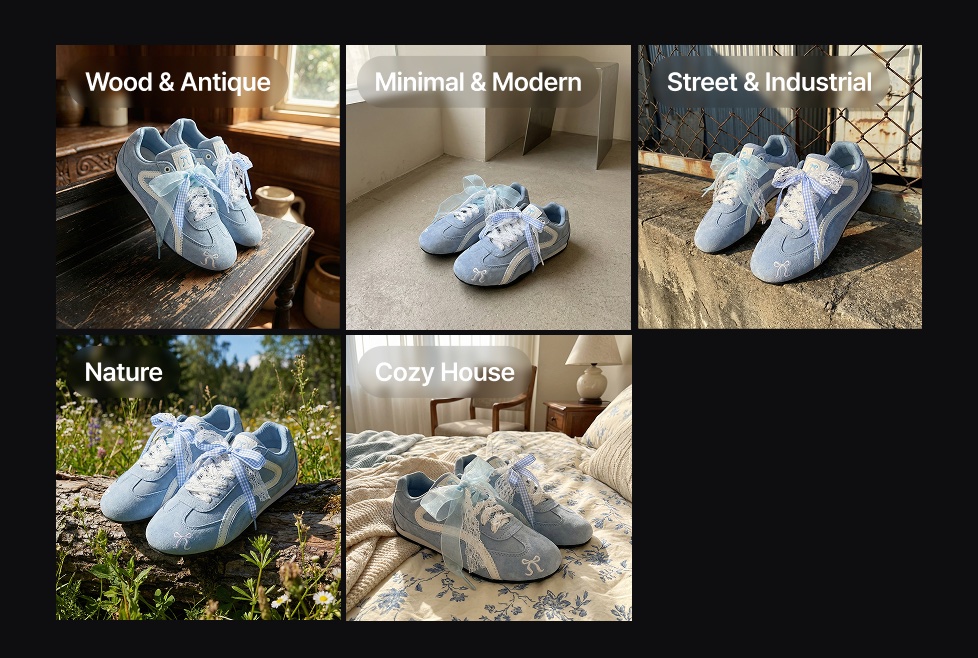
Styled object includes space-level styling, so you can specify a space concept. Available concepts:
- Wood & antique
- Minimal & modern
- Street & industrial
- Nature
- Cozy house
STEP 3. Set quantity and generate 👇
Once you’ve added options, set the quantity for each. Added options can be edited or removed later. You can also stack multiple type + detail combinations and generate them all at once.
Quantity set? Hit the Generate Product Shot button! Find your results in the Results menu.
Tips for better results ✨
Product shots depend heavily on the state of your uploaded product image. Following these basics gets you much better results.
- Use images where product and background are clearly separated.
- Upload images where the product is fully visible and uncropped.
- Single-product images give the most reliable results.
- Mannequin or model-worn images may stay worn in the generated result.
- If you have a specific look in mind, combine type and detail settings.
Related guides 📚
One product image, a whole range of product shots. Ready to try Product Shots? 👇